
FREQUENTLY ASKED QUESTIONS (FAQ)
Everything you need to know about PSI Audio Professional Studio Monitors, Active Bass Traps, Setup, and Troubleshooting.
AVAA - General
We recommend a minimum of 2 units to keep symmetry in a room.
The number of units is dependent on the number of locations that need to be treated more than the size of the room.
In practice, the first two units are placed where they are most useful to the listening position, so they will have the greatest impact. Adding other units in different places further reduces the room modes.
 5
5
 2
2
The AVAA C214 and AVAA C20 are very comparable in terms of performance.
The main difference lies in the design and size, which make the AVAA C214 easier to integrate into a room.
What’s more, the AVAA C214 can be individually controlled via a smartphone app to turn it on and off and to adjust the gain.
Gain can be reduced on both models if the device shows signs of instability in its environment (where it is positioned).
On the AVAA C214, it is also possible to increase the gain and make it more efficient.
20
3
The AVAAs are pressure-based absorbers and will therefore be most effective in location where the pressure build-up is greatest. As it is almost impossible to model the acoustic behaviour in a room, the following rules offer a rapid way of find the best positions:
- In the corners.
Corners will generally be most the most effective location as they combine pressure build-up from with lengthwise, width wise and vertical room modes. - Against the most rigid wall.
By definition, flexible walls will move and let sound through. Rigid walls will move less and have greater pressure build-up. - Closest to the source of sound.
If all corners are identical, we have generally observed greater efficiency in corners closest to the source of sound, such as behind the loudspeakers.
And of course, the best result in the listening position is easily achieved after a couple of trials with AVAAs in different positions.
Refer to the user manual for further details.
2
0
When the AVAAs are positioned in a high pressure area of a room mode, the room mode resonance time (RT60) is typically reduced by 30% to 50%.
The result is less low frequency ringing, clearer mids and highs with reduced masking effect and better imaging.
1
0
AVAA C20
We recommend a minimum of 2 units to keep symmetry in a room.
The number of units is dependent on the number of locations that need to be treated more than the size of the room.
In practice, the first two units are placed where they are most useful to the listening position, so they will have the greatest impact. Adding other units in different places further reduces the room modes.
5
2
The AVAA C214 and AVAA C20 are very comparable in terms of performance.
The main difference lies in the design and size, which make the AVAA C214 easier to integrate into a room.
What’s more, the AVAA C214 can be individually controlled via a smartphone app to turn it on and off and to adjust the gain.
Gain can be reduced on both models if the device shows signs of instability in its environment (where it is positioned).
On the AVAA C214, it is also possible to increase the gain and make it more efficient.
20
3
The AVAAs are pressure-based absorbers and will therefore be most effective in location where the pressure build-up is greatest. As it is almost impossible to model the acoustic behaviour in a room, the following rules offer a rapid way of find the best positions:
- In the corners.
Corners will generally be most the most effective location as they combine pressure build-up from with lengthwise, width wise and vertical room modes. - Against the most rigid wall.
By definition, flexible walls will move and let sound through. Rigid walls will move less and have greater pressure build-up. - Closest to the source of sound.
If all corners are identical, we have generally observed greater efficiency in corners closest to the source of sound, such as behind the loudspeakers.
And of course, the best result in the listening position is easily achieved after a couple of trials with AVAAs in different positions.
Refer to the user manual for further details.
2
0
When the AVAAs are positioned in a high pressure area of a room mode, the room mode resonance time (RT60) is typically reduced by 30% to 50%.
The result is less low frequency ringing, clearer mids and highs with reduced masking effect and better imaging.
1
0
AVAA C214
Yes, both the C20 and the C214 can be used in any position.
The optional feet available for the C214 are useful to place it horizontally on the floor or to fix it to wall or ceiling.
3
0
Yes, when new firmware is available, an update will be displayed in your app. You can then download and install it over the wireless network.
7
4
We recommend a minimum of 2 units to keep symmetry in a room.
The number of units is dependent on the number of locations that need to be treated more than the size of the room.
In practice, the first two units are placed where they are most useful to the listening position, so they will have the greatest impact. Adding other units in different places further reduces the room modes.
5
2
The AVAA C214 and AVAA C20 are very comparable in terms of performance.
The main difference lies in the design and size, which make the AVAA C214 easier to integrate into a room.
What’s more, the AVAA C214 can be individually controlled via a smartphone app to turn it on and off and to adjust the gain.
Gain can be reduced on both models if the device shows signs of instability in its environment (where it is positioned).
On the AVAA C214, it is also possible to increase the gain and make it more efficient.
20
3
The AVAAs are pressure-based absorbers and will therefore be most effective in location where the pressure build-up is greatest. As it is almost impossible to model the acoustic behaviour in a room, the following rules offer a rapid way of find the best positions:
- In the corners.
Corners will generally be most the most effective location as they combine pressure build-up from with lengthwise, width wise and vertical room modes. - Against the most rigid wall.
By definition, flexible walls will move and let sound through. Rigid walls will move less and have greater pressure build-up. - Closest to the source of sound.
If all corners are identical, we have generally observed greater efficiency in corners closest to the source of sound, such as behind the loudspeakers.
And of course, the best result in the listening position is easily achieved after a couple of trials with AVAAs in different positions.
Refer to the user manual for further details.
2
0
When the AVAAs are positioned in a high pressure area of a room mode, the room mode resonance time (RT60) is typically reduced by 30% to 50%.
The result is less low frequency ringing, clearer mids and highs with reduced masking effect and better imaging.
1
0
AVAA C214 / App troubleshooting
A breathing blue LED normally indicates the device’s Wi-Fi interface is active and waiting for full confirmation of the connection (standard behavior during Wi-Fi setup).
In some cases, especially right after resetting network credentials, the AVAA C214 may lose its saved connection when powered off and show the breathing blue LED when restarted. This is due to a known firmware issue that will be resolved in an upcoming update.
How to fix it (workaround):
- After resetting credentials, connect the AVAA C214 to your wireless network using the app.
- Power the unit off and then back on.
- Re-open the app and verify the unit is shown as connected.
- If needed, repeat the connection step once more — after this second connect, the AVAA C214 should remain connected through future restarts.
Once the firmware update is released, this issue will be fixed and this additional reconnection step should no longer be necessary.
0
3
Yes, enable Hotspot and wifi. You can fill in the SSID with your Hotspot’s name and password.
This should work in most case with Android phones.
0
0
After pairing your AVAA device with the app, it might look like it disappears from view — but it hasn’t actually disconnected. This usually happens because the app collapses the device list by default after pairing.
Here’s how to find it again:
- Open the PSI Audio/AVAA app and go to the main screen.
- Look for the small downward arrow near the top of the screen.
- Tap the arrow to expand the list — your device should appear below it.
⬇️ (This arrow hides/shows connected device entries.)
Most common reasons this is confusing:
- Users don’t notice the UI arrow and think the device vanished.
- The app doesn’t show a message indicating the list is collapsed.
- On some screens the arrow is subtle or visually hidden on smaller phones.
Tips if you still don’t see your device:
Close and reopen the app to refresh the device list.
Make sure the device is powered on and has a solid blue connection LED indicating it’s connected to the network.
Check that your phone is connected to the same Wi-Fi network as the AVAA device.
2
14
Make sure you only have one single application open, and make sure the AVAAs are “forgotten” on any other devices connected to the same network.
0
0
A solid blue LED means your AVAA successfully connected to your Wi-Fi network.
If your smartphone cannot see the device in the app, it usually means your phone and AVAA are connected to different networks or the app cannot reach the device.
Step 1 – Check that your phone and AVAA are on the same Wi-Fi network
- Open your phone’s Wi-Fi settings.
- Confirm which network your phone is connected to.
- Make sure this is the same network you used during AVAA setup.
⚠️ Phones often automatically reconnect to a preferred or stronger network without warning.
Step 2 – Disable mobile data temporarily
Some smartphones switch between Wi-Fi and mobile data automatically, which can prevent device discovery.
- Turn OFF mobile data.
- Reopen the AVAA app.
- Check if the device appears.
Step 3 – Avoid split or mesh networks (if applicable)
Device discovery can fail if:
- You are using Wi-Fi repeaters
- You have multiple routers or mesh systems
- Your phone switches between 2.4 GHz and 5 GHz networks
Try:
- Connecting your phone to the main router
- Ensuring the AVAA connects to a 2.4 GHz Wi-Fi network if required
Step 4 – Refresh the connection
- Close the AVAA app completely
- Reopen it
- Wait 10–20 seconds for device discovery
Step 5 – If the device still does not appear
Try restarting:
- The AVAA unit
- Your router
- Your smartphone
💡 What the LED Means
- Solid blue LED: AVAA is connected to Wi-Fi successfully
- Breathing or blinking blue: AVAA is trying to connect
📩 Still not working?
Please contact PSI Audio support and include:
- Your router model
- Phone model
- Wi-Fi type (mesh / repeater / single router)
- Screenshot of the app
2
10
Either the router is powered off or the credentials given during the process are incorrect.
Please check that the router is up and running. Check the credentials. Check that the wifi band is 2.4 GHz.
0
2
The breathing blue LED indicates the unit’s wireless interface is active but not yet successfully connected to your Wi-Fi network. This can happen if the AVAA C214 is outside reliable Wi-Fi range, trying to join a 5 GHz network (only 2.4 GHz is supported), or facing networking issues such as repeaters or weak signal.
How to fix it:
- Move the AVAA C214 closer to the router/access point.
- Ensure your router’s 2.4 GHz Wi-Fi is enabled and used for setup.
- Check there aren’t many repeater/switch hops between device and router.
- In the app, “Forget” the device and reconnect to Wi-Fi.
- If needed, reset the network credentials or factory reset per the user manual.
0
6
The pairing process was successful and your AVAA C214 is already registered in the application The network information was updated correctly.
0
1
- iPhone, you can download the App from the App Store:
https://apps.apple.com/ch/app/psi-audio-avaa-controller/id6651839273?l=en-GB - Android, you can download the App from Google Play Store:
https://play.google.com/store/apps/details?id=ch.psiaudio.avaa_controller
0
0
Studio monitors
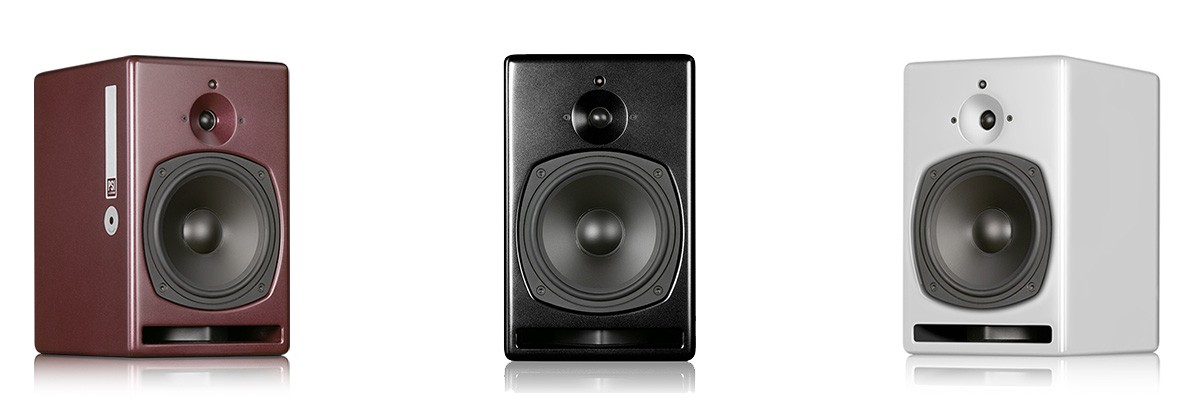
PSI Audio products are available in 3 different colours:
– Studio Red
– Metallic Black
– Pure White
3
0